
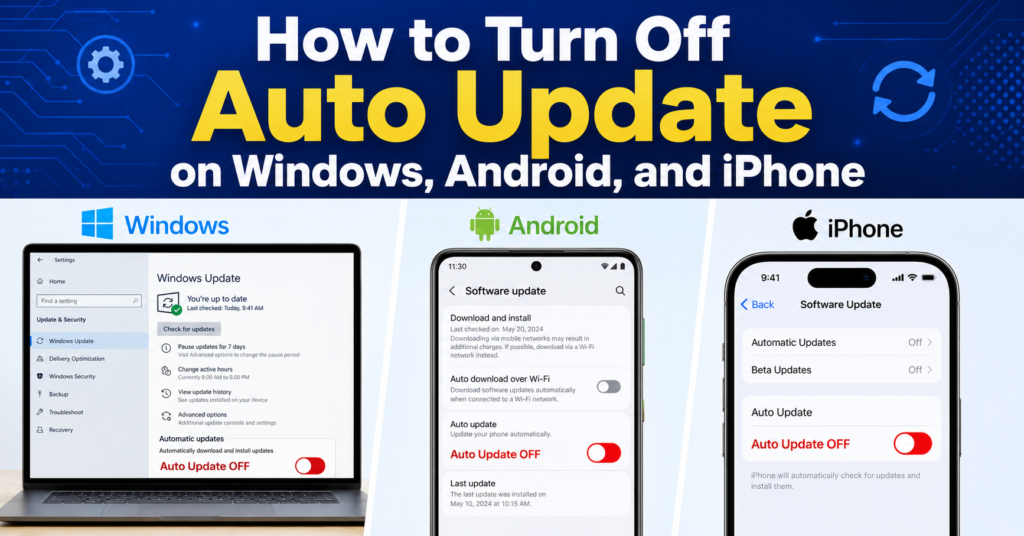
How to Turn Off Auto Update

I was three slides away from finishing a presentation, ten minutes before a client call, when my laptop decided it was the perfect time to install a Windows update.

The screen went blue, the little percentage counter started crawling up, and there was absolutely nothing I could do except sit there and watch “Working on updates, don’t turn off your computer” while my phone buzzed with the client asking if I was ready to join.

That was the day I finally sat down and figured out, properly, how to turn off auto update on every device I own. Not just Windows, but my phone too, because the same thing kept happening with random apps updating themselves and eating my mobile data right before I needed to use them. At Wisemly, we know how frustrating this can be.

Turns out it’s pretty easy once you know where to look. The settings are just buried in places you wouldn’t normally think to check. So here’s exactly what I did, on every device, including the mistake I made the first time that actually made things worse for a few days.

Why I Wanted Auto Update Turned Off

I’m not against updates in general. Security patches matter, and I know that. My issue was purely about timing.

Updates would download in the background without warning, then demand a restart at random moments. Sometimes that meant losing unsaved work. Sometimes it meant my laptop randomly draining battery while it was supposed to be sleeping in my bag. And on my phone, apps would auto update over my data plan even when I specifically didn’t want to use data that day.

I didn’t want to stop updates forever. I just wanted control over when they happened. That distinction matters, and I’ll get into why later.

How to Turn Off Auto Update on Windows 11

This is the one that started the whole thing for me, so let’s start here.

Step 1: The quick fix \u2014 pausing updates

Open Settings (you can just search for it from the Start menu). Click Windows Update from the left sidebar. You’ll see an option to pause updates for a set period. Click the dropdown and pick how long you want \u2014 Windows 11 lets you pause in chunks, and you can keep extending it.

This is the easiest method, but it’s temporary. After the pause period ends, updates resume automatically. I used this for a while before realizing I wanted something more permanent. You can check Microsoft’s own Windows Update support page if you want the official documentation on this.

Step 2: The more permanent fix \u2014 Group Policy Editor

This one actually stuck for me. Here’s what I did:

Press the Windows key and R together to open the Run box. Type gpedit.msc and hit Enter.

Navigate through: Computer Configuration, then Administrative Templates, then Windows Components, then Windows Update, then Manage end user experience.

Find the setting called “Configure Automatic Updates” and double-click it.

Select Disabled, then click Apply, then OK.

After this, Windows stopped installing updates automatically. If I want to check for updates myself, I just go to Settings, Windows Update, and click “Check for updates” manually whenever it’s convenient for me.

The mistake I made: the first time I did this, I disabled updates and then completely forgot about them for almost four months. That’s not great for security. What I do now is check manually once every couple of weeks, usually on a weekend morning when I’m not in the middle of anything. That way I still get the control, without going dark on important security patches.

One thing worth knowing \u2014 this Group Policy method is built into Windows 11 Pro. If you’re on Windows 11 Home, the Group Policy Editor isn’t available by default, so you’d need to use the Registry method instead, which is more technical and involves creating registry keys manually. I’d only recommend that route if you’re comfortable editing the registry, since mistakes there can cause other problems.

How to Turn Off Auto Update on Android

This was the second piece of the puzzle for me, because my phone kept updating apps over mobile data without asking.

Open the Google Play Store app. Tap your profile picture in the top right corner. Go to Settings, then Network preferences, then Auto-update apps.

You’ll see three options. I picked “Don’t auto-update apps” since that gave me full control. If you still want some convenience but don’t want it eating your data, “Over Wi-Fi only” is a solid middle ground.

If you only want to stop one specific app from updating instead of everything, open that app’s page in the Play Store, tap the three dots in the top right corner, and uncheck “Enable auto-update.”

I actually use a mix of both. Most of my apps are set to Wi-Fi only updates, but a couple of apps I’m cautious about (ones that sometimes break with new versions) I’ve individually turned off completely.

How to Turn Off Auto Update on iPhone

My partner has an iPhone, and I ended up setting this up for her after she complained about the same data usage issue.

For app updates specifically: open Settings, tap Apps, then tap App Store, and turn off App Updates.

For the iPhone’s actual operating system updates: open Settings, go to General, then Software Update, then Automatic Updates. From there you can turn off the automatic download toggle. Apple’s own support documentation covers this too if you want to double check anything.

One thing I’d actually recommend keeping on, even if you turn everything else off: there’s usually a separate toggle for “Security Responses & System Files.” That one handles critical security patches separately from full version updates, and it’s worth leaving that one alone.

Why Some People Choose to Keep Auto Update On

Before you turn everything off, it’s worth being honest about the other side of this. A few friends I mentioned this to actually didn’t want to turn off auto update at all, and their reasons were fair.

If you’re someone who genuinely forgets to check for updates manually, leaving auto update on protects you from running outdated, vulnerable software for months without realizing it. Security patches often fix real vulnerabilities that get actively exploited, and the people most at risk are usually the ones who disable updates and then never think about it again.

Auto update is also genuinely convenient if your device isn’t your main work tool. For a tablet I barely use, I actually leave updates on, because the downside of an occasional restart doesn’t really affect me there.

The real takeaway isn’t that auto update is bad. It’s that you should be the one deciding when it happens, especially on devices you rely on for work or anything time sensitive. If you’re someone who reliably checks for updates every couple of weeks anyway, turning it off is a clear win. If you know yourself well enough to admit you won’t check manually, a safer middle ground, like Wi-Fi only updates or pausing instead of fully disabling, probably suits you better.

Common Mistakes People Make With This

Turning off updates completely and then never checking manually again. This is the big one. I made this mistake myself for a few months. Set a reminder on your phone or calendar to manually check once every couple of weeks. It takes two minutes.

Disabling updates on a work laptop without checking with IT first. If your work computer is managed by an IT department, messing with update policies can sometimes conflict with their systems or even get flagged. I learned this from a coworker who got an automated email asking why their update policy had changed.

Turning off updates because of one bad experience, then forgetting why you did it. A few months after I disabled Windows updates, I genuinely forgot the original reason and almost turned them back on out of habit. Writing down why you made the change, even just a quick note in your phone, helps you remember the trade-off you made on purpose.

Assuming pausing and disabling are the same thing. They’re not. Pausing is temporary and resumes on its own. Disabling through Group Policy stays off until you manually change it back. Know which one you’re actually doing.

What I’d Actually Recommend

If you just want some breathing room and don’t want to mess with settings too deeply, pausing updates for a week or two at a time is honestly enough for most people. It’s reversible, it’s simple, and it solves the “why is this happening right now” problem.

If you’re someone who’s been burned more than once, like I was, the Group Policy method on Windows gives you real control, as long as you’re disciplined enough to check manually every so often.

For phones, I’d lean toward Wi-Fi only rather than turning updates off completely, unless there’s a specific app you have a reason to be cautious about.

At the end of the day, this isn’t really about avoiding updates forever. It’s about not letting your devices make decisions about your time without asking you first. That’s really all I wanted, and once I set this up properly, I haven’t had a single surprise restart since. This guide from Wisemly is here to help you stay in control.